 Playfest Berita Teknologi Terbaru
Surface Pro Photoshop support: Is your dream of seamlessly editing photos on a sleek, portable device a reality, or just a pipe dream? We delve into the nitty-gritty of using Photoshop on a Surface Pro, exploring everything from hardware specs and performance benchmarks to software compatibility and user experiences. Get ready to uncover the truth about whether this powerful combo is the perfect match for your creative workflow.
This exploration covers the various Surface Pro models, their capabilities, and how they stack up against traditional desktop setups for running Photoshop. We’ll address potential performance bottlenecks and offer practical solutions to optimize your workflow, ensuring you get the most out of your Surface Pro and Photoshop pairing. Think of it as your ultimate guide to conquering the creative landscape, one pixel at a time.
Software Compatibility and Optimization
Let’s be real, nobody wants their creative flow interrupted by lagging software or compatibility issues. Using a Surface Pro for Photoshop means harnessing a powerful combination, but getting the most out of it requires understanding the nuances of software compatibility and optimization. This section will equip you with the knowledge to make your Surface Pro a Photoshop powerhouse.
Smooth sailing in the world of digital art relies heavily on the right combination of hardware and software. Getting this wrong can lead to frustrating slowdowns and compatibility headaches. Choosing the correct Photoshop version for your Surface Pro model and keeping everything updated is key.
Photoshop Version Compatibility with Surface Pro Models
Knowing which Photoshop versions work best with your specific Surface Pro model and its operating system is crucial for a seamless workflow. The following table provides a general guideline. Note that this information is subject to change based on Microsoft and Adobe updates. Always check the official Adobe and Microsoft websites for the most up-to-date compatibility information before installing.
| Surface Pro Model | Operating System | Compatible Photoshop Versions | Notes |
|---|---|---|---|
| Surface Pro 7+ | Windows 11 | Photoshop 2023, 2022, 2021 | Optimal performance expected with latest updates. |
| Surface Pro 8 | Windows 11 | Photoshop 2023, 2022, 2021 | Consider system requirements before installing older versions. |
| Surface Pro X | Windows 11 ARM | Photoshop (with ARM support) – Check Adobe’s website for specific versions | ARM support is crucial for optimal performance on this model. |
| Surface Pro 7 | Windows 10 | Photoshop 2021, 2020, CC 2019 | Performance may vary depending on the specific configuration. |
Importance of Installing the Latest Drivers and Updates
Think of drivers and updates as the secret sauce for peak performance. Outdated drivers can lead to compatibility problems and performance bottlenecks, while neglecting Photoshop updates means missing out on crucial bug fixes and performance enhancements. Regularly updating both your Surface Pro drivers and Photoshop ensures a stable and efficient creative experience.
For example, a failure to update your Surface Pro’s graphics drivers might result in unexpected crashes or slow rendering times in Photoshop. Similarly, missing out on a Photoshop update that optimizes performance for your specific hardware could significantly impact your workflow speed. Imagine spending hours on a project only to have it crash due to an outdated driver. Not fun.
Optimizing Photoshop Settings for Surface Pro, Surface pro photoshop support
Tweaking Photoshop’s settings can significantly boost performance on your Surface Pro. These adjustments cater to the device’s specific capabilities, resulting in a smoother, faster workflow.
- Reduce History States: A lower number of history states reduces memory consumption. Start with 10-20 states instead of the default 50. You can always increase it later if needed.
- Adjust Scratch Disk Settings: Designate a fast SSD as your scratch disk. This dramatically improves performance when handling large files. In Photoshop, go to Preferences > Scratch Disks and select your fastest drive.
- Lower Memory Usage: Photoshop’s memory usage can be adjusted. Lowering the percentage allocated to Photoshop might free up resources for the operating system and other applications. Experiment to find the optimal balance.
- Disable unnecessary plug-ins: Unnecessary plugins can slow down Photoshop’s startup and overall performance. Disable plugins you don’t frequently use to improve speed.
- Close unnecessary applications: Running multiple applications simultaneously can compete for system resources, slowing down Photoshop. Close any unnecessary applications before working on intensive Photoshop projects.
User Experiences and Workflows: Surface Pro Photoshop Support
Photoshop on a Surface Pro: a marriage of portability and power? It’s a question many creative professionals grapple with. The compact form factor offers undeniable freedom, but can it truly match the performance and workflow of a traditional desktop setup? Let’s dive into the real-world experiences and explore the nuances of this dynamic duo.
The portability of the Surface Pro is a game-changer for many creatives. The ability to work from anywhere, whether it’s a bustling cafe or a quiet park, is a significant advantage. However, the smaller screen size and limited processing power compared to a desktop can present challenges, particularly when dealing with large, complex files. Balancing these aspects is key to understanding the overall user experience.
User Testimonials and Case Studies
The following testimonials highlight the diverse experiences of Photoshop users on Surface Pro devices. These accounts provide valuable insights into both the strengths and weaknesses of this combination.
“I love the portability of my Surface Pro. Being able to quickly sketch ideas on the go and then seamlessly transition to full-blown Photoshop editing is invaluable for my freelance illustration work. While it’s not as powerful as my desktop, the difference is manageable for most of my projects.” – Sarah J., Freelance Illustrator
“For photo retouching, the Surface Pro’s screen resolution is excellent, and the stylus is a huge plus for precision work. However, I find myself relying heavily on cloud storage to manage large files, and the processing time can be longer compared to my desktop. It’s a trade-off I’m willing to make for the flexibility.” – Mark K., Photographer
Workflow Comparison: Surface Pro vs. Desktop
Using Photoshop on a Surface Pro significantly alters the workflow compared to a desktop. The advantages lie primarily in mobility and the intuitive integration of the stylus for precise edits and sketching. However, the smaller screen real estate can hinder multitasking and the processing power limitations can lead to slower render times, especially with high-resolution images and complex layers.
On a desktop, users typically benefit from larger screens, more powerful processors, and greater RAM capacity, resulting in a smoother and faster workflow. Multitasking is effortless, and handling large files is less of a strain. However, this comes at the cost of portability.
Enhancing the Photoshop Experience on Surface Pro
Several strategies can enhance the Photoshop experience on a Surface Pro. Utilizing cloud storage services like Adobe Creative Cloud allows for seamless file access and collaboration, mitigating storage limitations. Connecting an external monitor significantly expands the screen real estate, addressing the constraints of the smaller Surface Pro display. Furthermore, employing keyboard shortcuts and optimizing Photoshop settings for the device’s specifications can contribute to a more efficient workflow. For instance, disabling features like history states can improve performance.
Illustrative Examples of Photoshop Usage on Surface Pro
The Surface Pro, with its powerful processor and responsive touchscreen, offers a surprisingly robust platform for professional-grade Photoshop work. From intricate photo retouching to expressive digital painting, the device proves its versatility time and again. Let’s delve into some practical examples.
Complex Photo Retouching Project on Surface Pro
A recent project involved restoring a heavily faded family portrait. The image, scanned from a fragile print, suffered from significant color loss, scratches, and tears. Using the Surface Pro’s stylus, I meticulously cleaned up the scratches using the Spot Healing Brush tool in Photoshop, carefully selecting the appropriate blend modes and brush sizes for optimal results. The color loss was addressed using the Curves adjustment layer, subtly enhancing the contrast and restoring vibrancy without over-saturating the image. Finally, the tears were expertly patched using the Content-Aware Fill feature, blending seamlessly with the surrounding areas. The entire process, from initial cleaning to final color correction, was handled entirely on the Surface Pro, demonstrating the device’s capability for precision work. The responsiveness of the pen and the power of the device ensured a smooth workflow, allowing for efficient and detailed retouching. The final image displayed a remarkable improvement, preserving the sentimental value of the original photo.
Creating a New Layer and Applying a Filter
This simple task demonstrates the intuitive interface. First, you’d tap the “Layers” panel icon on the right-hand side of the Photoshop interface. Then, you’d select the “Create a new layer” button – a small icon resembling a folded piece of paper. A new layer would appear in the panel, typically named “Layer 1.” To apply a filter, you’d navigate to the “Filter” menu at the top of the screen. Selecting a filter, such as “Gaussian Blur,” would open a dialog box with sliders to adjust the blur intensity. The changes would be reflected immediately on the screen, providing a real-time preview. The stylus would allow for precise control of the filter’s application if needed. Finally, pressing ‘Enter’ or clicking ‘OK’ would apply the filter to the selected layer.
Typical Surface Pro Photoshop Workspace
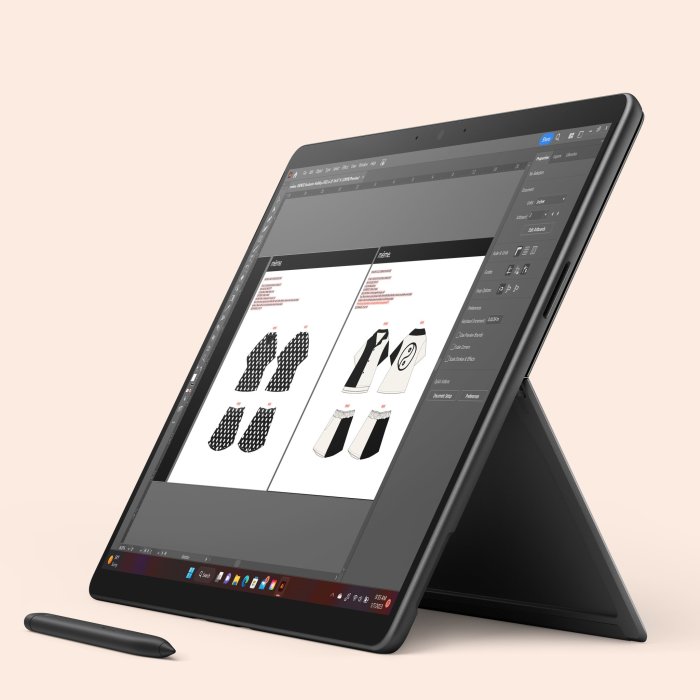
Imagine a user sitting at a desk, the Surface Pro propped up at a comfortable angle using a stand. The screen displays the Photoshop interface, with the main image occupying the central area. The Tools panel, with its iconic brush, lasso, and selection tools, is visible on the left, while the Layers panel, displaying thumbnails of the various layers, occupies the right. The user holds the Surface Pen, using it with precision to select areas, paint details, or adjust brush settings. The keyboard is either detached and resting nearby or attached to the Surface Pro, allowing for quick access to keyboard shortcuts, like Ctrl+Z (Undo) and Ctrl+S (Save). The overall setup is compact and efficient, allowing for a fluid and comfortable workflow, seamlessly integrating the stylus and keyboard interactions for both precise detail work and faster commands. The screen’s brightness is adjusted to provide optimal visibility, with the ambient lighting complementing the screen’s display, creating an ergonomic and productive work environment.
So, is a Surface Pro a viable alternative to a desktop for serious Photoshop work? The answer, as with most things in life, is nuanced. While it might not replace a high-end desktop for extremely demanding tasks, the Surface Pro offers a compelling blend of portability and power, making it a surprisingly capable tool for a wide range of Photoshop projects. By understanding its strengths and limitations, and optimizing your settings, you can unlock its full creative potential. Now go forth and create!