 Playfest Berita Teknologi Terbaru
Dolphin Nintendo Wii GameCube emulator running on Android: Suddenly, your phone’s a retro gaming powerhouse! Imagine playing classic GameCube and Wii titles on your Android device. Sounds crazy, right? But with the right setup and a little know-how, you can dive headfirst into nostalgia – and maybe even discover some hidden gems you missed back in the day. This deep dive explores everything you need to know about running Dolphin, from system requirements to troubleshooting those pesky glitches.
We’ll cover everything from figuring out if your phone can handle the heavy lifting to optimizing settings for peak performance. Think of it as your ultimate guide to turning your Android into a retro gaming paradise. Get ready to dust off those old favorites (legally, of course!), because this is going to be a fun ride.
Dolphin Emulator on Android
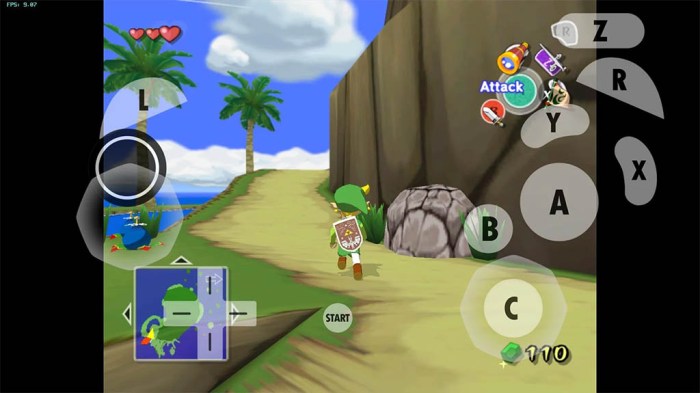
Dolphin Emulator brings the magic of GameCube and Wii gaming to Android, but success hinges on your device’s capabilities. Not all Android phones or tablets are created equal when it comes to emulating these relatively demanding systems. Understanding your device’s specs is crucial for a smooth and enjoyable experience.
Android System Requirements and Compatibility for Dolphin Emulator
Successfully running Dolphin Emulator on Android requires a powerful device. Minimum specifications will allow for some gameplay, but a smoother, more consistent experience requires significantly higher specs. Factors like processor architecture, clock speed, RAM, and GPU capabilities all play a critical role. Older or low-end devices might struggle even with less demanding games, resulting in slowdowns, glitches, or outright crashes. Conversely, high-end devices can often handle even the most graphically intensive Wii games with ease.
Performance Differences Across Android Devices
The difference between emulating on a low-end versus a high-end Android device is dramatic. A low-end device, perhaps with a Snapdragon 400 series processor, 2GB of RAM, and an Adreno 300 series GPU, might struggle to run even simpler GameCube games at playable frame rates. Expect significant slowdown, graphical glitches, and potential instability. In contrast, a high-end device, such as one equipped with a Snapdragon 8 Gen 2 processor, 12GB of RAM, and an Adreno 740 GPU, will likely handle most GameCube and Wii titles smoothly at high resolutions and potentially even with enhanced graphical settings. The difference isn’t just about smoother gameplay; it’s about the ability to play at all.
Impact of Android OS Version
While Dolphin Emulator strives for broad compatibility, the Android OS version can influence performance and stability. Newer Android versions often benefit from improved underlying system optimizations that can positively impact emulator performance. However, older versions might lack necessary features or have compatibility issues with the emulator’s codebase. Generally, newer Android versions (11 and above) tend to offer a more stable and potentially more performant environment for Dolphin. However, this is not a guarantee, as specific hardware still plays a significant role.
Android Device Suitability for Dolphin Emulation
The following table compares several Android devices and their suitability for Dolphin emulation. Remember that these are general guidelines, and individual game performance may vary. The “Suitability” rating is subjective, considering the balance between performance and the ability to run a variety of games smoothly.
| Device | Processor | RAM (GB) | GPU | Suitability |
|---|---|---|---|---|
| Google Pixel 7 Pro | Google Tensor G2 | 12 | Mali-G710 | Excellent |
| Samsung Galaxy S23 Ultra | Qualcomm Snapdragon 8 Gen 2 | 12 | Adreno 740 | Excellent |
| OnePlus 11 | Qualcomm Snapdragon 8 Gen 2 | 8 | Adreno 740 | Very Good |
| Xiaomi Redmi Note 11 | Qualcomm Snapdragon 680 | 4 | Adreno 610 | Poor |
Dolphin Emulator Configuration and Optimization on Android
Getting the most out of Dolphin Emulator on your Android device requires understanding its configuration options. Proper setup ensures smooth gameplay and enhances the overall experience, transforming your phone or tablet into a powerful GameCube and Wii console. This guide details the process of optimizing Dolphin Emulator for peak performance.
Dolphin Emulator’s performance on Android is heavily dependent on the device’s hardware and the specific game being emulated. More demanding titles will require more careful configuration to achieve playable frame rates. Balancing graphical fidelity with performance is key.
Graphical Settings and Their Impact
Dolphin Emulator offers a wide array of graphical settings, each influencing performance and visual quality. Understanding these settings is crucial for optimization. Higher settings generally improve visuals but increase the processing load, potentially leading to lower frame rates or lag. Conversely, lowering settings reduces the load, improving performance but potentially sacrificing visual detail.
- Resolution: Lower resolutions (e.g., 720p or even lower) significantly reduce the processing burden, leading to smoother gameplay. Higher resolutions (e.g., 1080p or higher) improve visual clarity but demand more processing power. The optimal resolution depends on your device’s capabilities and the game’s demands.
- Internal Resolution: This setting determines the resolution at which the game is rendered internally before being scaled to the output resolution. Increasing this improves image quality but impacts performance more significantly than output resolution. Experiment to find the best balance.
- Anti-Aliasing: This smooths out jagged edges in the game’s graphics. Higher levels of anti-aliasing improve visuals but increase processing load. Consider disabling or using a lower setting for better performance.
- Anisotropic Filtering: This improves the texture quality of surfaces viewed at an angle. Similar to anti-aliasing, higher settings improve visuals but impact performance. Lower settings or disabling it can boost performance considerably.
- Shaders: These affect the visual effects within the game. Using higher quality shaders enhances visual fidelity but significantly increases processing demands. Experiment with different shader presets to find a balance.
- Texture Filtering: This affects the clarity and sharpness of textures. Higher quality settings improve visuals but increase the load. Experiment to find the best balance between visual quality and performance.
Optimizing Settings for Different Games and Devices
Optimal Dolphin Emulator settings vary greatly depending on the game’s complexity and your Android device’s processing power. Demanding titles like “Super Smash Bros. Melee” or “The Legend of Zelda: Twilight Princess” will require more aggressive optimization than simpler GameCube games. Powerful devices can handle higher settings, while less powerful devices may need significant compromises to achieve playable frame rates. Experimentation is key. Start with lower settings and gradually increase them until you find the best balance between performance and visuals.
Step-by-Step Configuration Guide for “Super Mario Sunshine”, Dolphin nintendo wii gamecube emulator running on android
This guide details configuring Dolphin Emulator for “Super Mario Sunshine” on a hypothetical Android device. Remember, settings will vary depending on your specific device and desired performance level.
Step 1: Launch Dolphin Emulator and select “Super Mario Sunshine” from your ROMs.
Step 2: Navigate to the “Graphics” settings. A screen displaying numerous options will appear, similar to a PC’s graphics card control panel.
Step 3: Set “Resolution” to 720p. This balances visual quality and performance on most mid-range Android devices.
Step 4: Set “Internal Resolution” to 1x. This keeps the internal resolution the same as the output resolution, minimizing processing overhead.
Step 5: Disable “Anti-Aliasing” and “Anisotropic Filtering” to significantly boost performance.
Step 6: Use the default shaders. Advanced shader packs can improve visuals, but they will usually significantly reduce performance.
Step 7: Set “Texture Filtering” to “Bilinear.” This provides a decent balance between quality and performance.
Step 8: Test the game. If performance is still poor, consider lowering the resolution further or disabling more graphical options. If performance is excellent, experiment with increasing settings incrementally.
Troubleshooting Common Issues with Dolphin Emulator on Android: Dolphin Nintendo Wii Gamecube Emulator Running On Android
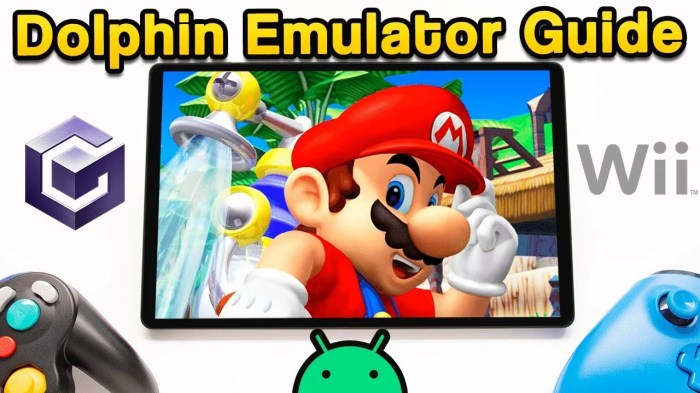
So, you’ve got Dolphin Emulator running on your Android device, ready to dive into the world of GameCube and Wii classics. But what happens when things don’t go as smoothly as planned? Don’t worry, even the most seasoned emulators encounter hiccups. This section will help you navigate the common pitfalls and get back to enjoying your retro gaming. We’ll cover troubleshooting steps for various issues, offering solutions to help you optimize your emulator experience.
Game Crashes and Unexpected Shutdowns
Dolphin Emulator, while powerful, can sometimes crash due to incompatibility issues, insufficient device resources, or corrupted game files. Crashes manifest as sudden application closures, often without error messages. To address these crashes, first ensure your Android device meets the minimum system requirements for the emulator and the specific game you’re trying to run. Try reducing the emulator’s graphics settings (resolution, anti-aliasing, etc.). If the problem persists, verify the integrity of your ROM file – a corrupted ROM is a common culprit. Re-downloading the game from a trusted source can often solve this. Finally, ensure your Android operating system is updated to the latest version; outdated software can sometimes cause conflicts.
Performance Issues: Slowdowns and Lag
Lag and slowdowns are frustrating, often appearing as stuttering gameplay or slow response times. These issues usually stem from insufficient processing power or memory limitations. To resolve performance issues, begin by lowering the emulator’s graphics settings. Experiment with different rendering backends (e.g., Vulkan, OpenGL) to see which performs best on your device. Closing background apps to free up RAM can also improve performance. If your device is still struggling, consider running less demanding games or adjusting the emulator’s CPU and GPU clock speeds (if supported by your device and the emulator). Remember, more demanding games will require more powerful hardware. For example, a game like Super Smash Bros. Melee will require significantly more processing power than a simpler title like Luigi’s Mansion.
Graphical Glitches and Visual Artifacts
Graphical glitches can range from minor texture issues to complete screen corruption. These problems are often linked to compatibility issues between the emulator, the game, and your device’s hardware. Start by experimenting with different rendering backends and graphics settings within Dolphin. Try lowering the resolution or disabling features like anti-aliasing. If the problem persists, it might indicate a problem with the ROM file itself or an incompatibility with your device’s GPU. Updating your emulator to the latest version is also recommended, as bug fixes frequently address graphical issues. For example, some older versions of Dolphin might have difficulty rendering certain textures correctly in games like Metroid Prime.
Compatibility Problems with Specific Games
Not all GameCube and Wii games are created equal when it comes to emulation. Some titles might run flawlessly, while others may experience issues despite following optimization steps. The first step is to check the Dolphin Emulator compatibility list for the specific game you’re struggling with. This list, found on the official Dolphin Emulator website, often provides insights into known issues and suggested settings. If a game is listed as having compatibility problems, there may be community-created fixes or configuration tweaks available online through forums and wikis dedicated to Dolphin emulation.
Frequently Asked Questions (FAQs)
Before we wrap up, here are some commonly asked questions about using Dolphin Emulator on Android:
- Q: My game runs too slowly. What can I do? A: Lower the emulator’s graphics settings (resolution, anti-aliasing, etc.), close background applications, and experiment with different rendering backends.
- Q: The game keeps crashing. What should I check? A: Ensure your device meets the minimum requirements, verify the integrity of your ROM file, and update your Android OS and Dolphin Emulator.
- Q: I’m experiencing graphical glitches. How can I fix them? A: Try different rendering backends and graphics settings, and check the Dolphin compatibility list for your game.
- Q: Which games are most compatible with Dolphin on Android? A: While compatibility varies, many GameCube games run well. Wii game compatibility is generally more challenging, but many titles work with proper configuration.
- Q: Where can I find ROMs for GameCube and Wii games? A: We do not endorse or support the distribution of ROMs. It is essential to only obtain ROMs for games you legally own.
So, there you have it – a comprehensive guide to unleashing the power of Dolphin on your Android. While getting it perfectly optimized might require some tinkering, the ability to play GameCube and Wii classics on the go is a serious game-changer. Remember to always respect copyright laws and obtain your ROMs legally. Now go forth and conquer those virtual worlds! Happy gaming!